VIRTUAL LAB

Configure Windows Defender on a Windows System

Course

This IT Pro Challenge helps learners understand how Microsoft Windows Defender works. Participants will learn how to configure Windows Defender to create an exclusion, how to verify that exclusion, and how to work with Windows Defender to prevent the installation of malicious software.

Full access included with 
Insider Pro
 and 
Teams

0

H

45

M
Time

Beginner

i
Designed for learners who have no prior work experience in IT or Cybersecurity, but are interested in starting a career in this exciting field.
Designed for learners with prior cybersecurity work experience who are interested in advancing their career or expanding their skillset.
Designed for learners with a solid grasp of foundational IT and cybersecurity concepts who are interested in pursuing an entry-level security role.
Experience Level

559

Enrollees

10

XP

0

i

Earn qualifying credits for certification renewal with completion certificates provided for submission.
CEU's

Learners at 96% of Fortune 1000 companies trust Cybrary

About this course

Read More

Skills you'll gain

Course Outline

No items found.
No items found.
No items found.
No items found.
Course Description

In this IT Pro Challenge, learners will understand how to use Windows PowerShell to verify that the Microsoft Windows Defender Graphical User Interface is installed and that Windows Defender is running, how to configure an exclusion, how to use Real-time protection to block the copy/paste operation of known malware. Learners will perform an exercise as a proof of concept of how Windows Defender can block or not block software installation. The skills learned in this virtual lab are useful to anyone pursuing a career as a system or network administrator.

Overview

The scenario for this virtual lab is that you are a systems administrator who is responsible for a server running Windows Server 2016. Your job is to confirm that the Windows Defender service will block the installation of potentially malicious software. To accomplish this, you will first verify that the Windows Defender service is running. Next, you will stop Windows Defender from scanning folders where potentially malicious software may be saved. You will then use Windows Defender to observe the effects of scanning and exclusions, and finally, you will allow Windows Defender to remove any malicious software.

Windows Defender (now called Microsoft Defender after the November 2019 Windows 10 Update) is an anti-malware (shorthand for malicious software) tool included with Microsoft Windows.

Check the Windows Defender service

To begin, you will launch Windows PowerShell and verify that the Windows Defender Graphical User Interface (GUI) is installed and that the Windows Defender service (windefend) is running.

NOTE: You can run Windows Defender without a GUI by using Group Policy or another centralized management process.

Configure Windows Defender

Now you will create a folder. Then you will launch Windows Defender and create an exclusion for the folder you just created. In Windows PowerShell, you will verify the exclusion path by running the Get-MpPreference command.

Work with malicious software

Finally, you will copy potentially malicious software (in this case, it’s a password-cracking utility) from a DVD to the directory that you created at the beginning of this lab. Because Microsoft has designated password-cracking utilities as malware, Windows Defender should detect the malware in the folder.

You will try to copy the malware to the folder you created. Windows Defender should alert you to the presence of malware and block the copy/paste operation. Then, as a proof of concept, you will turn off the Real-time protection option in Windows Defender and then attempt to copy and paste the malware to the folder again. This time, the copy/paste operation should be successful.

Summary Conclusion

By completing this lab, you will learn how to work with Windows Defender to accomplish various tasks, such as:

  • Confirm the Windows Defender status.
  • Configure an exclusion in Windows Defender.
  • Use Windows Defender to observe the effect of Real-Time Scanning and Exclusions.
  • Use Windows Defender to observe the removal of potentially malicious software.

Train Your Team

Cybrary’s expert-led cybersecurity courses help your team remediate skill gaps and get up-to-date on certifications. Utilize Cybrary to stay ahead of emerging threats and provide team members with clarity on how to learn, grow, and advance their careers within your organization.

Included in a Path

No items found.
No items found.

Instructors

Joseph White
Lab Architect
Read Full Bio
Learn

Learn core concepts and get hands-on with key skills.

Practice

Exercise your problem-solving and creative thinking skills with security-centric puzzles

Prove

Assess your knowledge and skills to identify areas for improvement and measure your growth

Get Hands-on Learning

Put your skills to the test in virtual labs, challenges, and simulated environments.

Measure Your Progress

Track your skills development from lesson to lesson using the Cybrary Skills Tracker.

Connect with the Community

Connect with peers and mentors through our supportive community of cybersecurity professionals.

Success from Our Learners

"Cybrary really helped me get up to speed and acquire a baseline level of technical knowledge. It offers a far more comprehensive approach than just learning from a book. It actually shows you how to apply cybersecurity processes in a hands-on way"

Don Gates

Principal Systems Engineer/SAIC

"Cybrary’s SOC Analyst career path was the difference maker, and was instrumental in me landing my new job. I was able to show the employer that I had the right knowledge and the hands-on skills to execute the role."

Cory

Cybersecurity analyst/

"I was able to earn my CISSP certification within 60 days of signing up for Cybrary Insider Pro and got hired as a Security Analyst conducting security assessments and penetration testing within 120 days. This certainly wouldn’t have been possible without the support of the Cybrary mentor community."

Mike

Security Engineer and Pentester/

"Cybrary really helped me get up to speed and acquire a baseline level of technical knowledge. It offers a far more comprehensive approach than just learning from a book. It actually shows you how to apply cybersecurity processes in a hands-on way"

Don Gates

Principal Systems Engineer/SAIC

"Cybrary’s SOC Analyst career path was the difference maker, and was instrumental in me landing my new job. I was able to show the employer that I had the right knowledge and the hands-on skills to execute the role."

Cory

Cybersecurity analyst/

"I was able to earn my CISSP certification within 60 days of signing up for Cybrary Insider Pro and got hired as a Security Analyst conducting security assessments and penetration testing within 120 days. This certainly wouldn’t have been possible without the support of the Cybrary mentor community."

Mike

Security Engineer and Pentester/

"Becoming a Cybrary Insider Pro was a total game changer. Cybrary was instrumental in helping me break into cybersecurity, despite having no prior IT experience or security-related degree. Their career paths gave me clear direction, the instructors had real-world experience, and the virtual labs let me gain hands-on skills I could confidently put on my resume and speak to in interviews."

Cassandra

Information Security Analyst/Cisco Systems

"I was able to earn both my Security+ and CySA+ in two months. I give all the credit to Cybrary. I’m also proud to announce I recently accepted a job as a Cyber Systems Engineer at BDO... I always try to debunk the idea that you can't get a job without experience or a degree."

Casey

Cyber Systems Engineer/BDO

"Cybrary has helped me improve my hands-on skills and pass my toughest certification exams, enabling me to achieve 13 advanced certifications and successfully launch my own business. I love the practice tests for certification exams, especially, and appreciate the wide-ranging training options that let me find the best fit for my goals"

Angel

Founder,/ IntellChromatics.

Configure Windows Defender on a Windows System

This IT Pro Challenge helps learners understand how Microsoft Windows Defender works. Participants will learn how to configure Windows Defender to create an exclusion, how to verify that exclusion, and how to work with Windows Defender to prevent the installation of malicious software.

0
45
M
Time
Beginner
difficulty
0
ceu/cpe

Course Content

Course Description

In this IT Pro Challenge, learners will understand how to use Windows PowerShell to verify that the Microsoft Windows Defender Graphical User Interface is installed and that Windows Defender is running, how to configure an exclusion, how to use Real-time protection to block the copy/paste operation of known malware. Learners will perform an exercise as a proof of concept of how Windows Defender can block or not block software installation. The skills learned in this virtual lab are useful to anyone pursuing a career as a system or network administrator.

Overview

The scenario for this virtual lab is that you are a systems administrator who is responsible for a server running Windows Server 2016. Your job is to confirm that the Windows Defender service will block the installation of potentially malicious software. To accomplish this, you will first verify that the Windows Defender service is running. Next, you will stop Windows Defender from scanning folders where potentially malicious software may be saved. You will then use Windows Defender to observe the effects of scanning and exclusions, and finally, you will allow Windows Defender to remove any malicious software.

Windows Defender (now called Microsoft Defender after the November 2019 Windows 10 Update) is an anti-malware (shorthand for malicious software) tool included with Microsoft Windows.

Check the Windows Defender service

To begin, you will launch Windows PowerShell and verify that the Windows Defender Graphical User Interface (GUI) is installed and that the Windows Defender service (windefend) is running.

NOTE: You can run Windows Defender without a GUI by using Group Policy or another centralized management process.

Configure Windows Defender

Now you will create a folder. Then you will launch Windows Defender and create an exclusion for the folder you just created. In Windows PowerShell, you will verify the exclusion path by running the Get-MpPreference command.

Work with malicious software

Finally, you will copy potentially malicious software (in this case, it’s a password-cracking utility) from a DVD to the directory that you created at the beginning of this lab. Because Microsoft has designated password-cracking utilities as malware, Windows Defender should detect the malware in the folder.

You will try to copy the malware to the folder you created. Windows Defender should alert you to the presence of malware and block the copy/paste operation. Then, as a proof of concept, you will turn off the Real-time protection option in Windows Defender and then attempt to copy and paste the malware to the folder again. This time, the copy/paste operation should be successful.

Summary Conclusion

By completing this lab, you will learn how to work with Windows Defender to accomplish various tasks, such as:

  • Confirm the Windows Defender status.
  • Configure an exclusion in Windows Defender.
  • Use Windows Defender to observe the effect of Real-Time Scanning and Exclusions.
  • Use Windows Defender to observe the removal of potentially malicious software.
This course is part of a Career Path:
No items found.

Instructed by

Provider
Cybrary Logo
Certification Body
Certificate of Completion

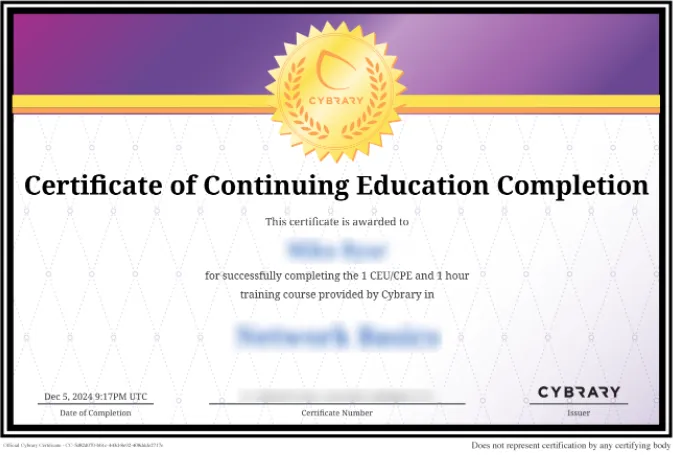
Complete this entire course to earn a Configure Windows Defender on a Windows System Certificate of Completion